
Point Expiration User Guide
Overview
Points expiration helps you monitor activities and save the rewards customers may accumulate. This article includes best practices in understanding and using points in terms of their expiration.
Point Expiration schemes
Loyalty supports 4 different types of Point expiration schemes:
- Last Activity
- Every Activity
- Program Date
- Program Date with a delayed cycle
Last Activity
This type of expiration is to ensure loyalty members return to the brand and perform a qualifying activity to prevent their points from expiring. Last Activity expiration is a type of expiration scheme where a loyalty members points expire if they have been inactive for a defined period time. What constitutes a member being active can be defined by the marketer in terms of activity performed while configuring the expiration scheme.
This expiration scheme supports an optional Program Setting called Metric Expiration Interval Roundup. This Program Setting lets you “round” a Metric expiration date to the end of the month in which the points would expire. For more information, see Program Setting Category - Metric.
Every Activity
This type of expiration is to ensure that points earned on every activity expire independently from any other activity that the user performs.
In Every Activity expiration, member points expire in a First In First Out (FIFO) manner. This means that marketer(s) can set an expiration period and as the member performs an activity, the member has the duration of the expiration period to use those points otherwise they expire. The duration is applied to every activity that a member performs and the member has that amount of time to use the points earned on the activity. The advantage for the user is that not all their points expire at the same time. Instead, points expire at a fixed duration after they are earned on a per activity basis.
This expiration scheme supports an optional Program Setting called Metric Expiration Interval Roundup. This Program Setting lets you “round” a Metric expiration date to the end of the month in which the points would expire. For more information, see Program Setting Category - Metric.
Program Date
In the Program Date type of expiration, points expire on a fixed day after they are earned. The time is typically at the middle of the year for a 6 month cycle and at the end of the year for a 12 month cycle.
There is a variation to this scheme where we can introduce a delay where points earned in the first 6 months cycle can be delayed to expire by how many ever months the marketer chooses. Similar rule would apply to the points earned in the next set of 6 months.
Important
Marketers will not be able to edit the expiration type once they have been configured. Please select the intended expiration type in the first instance.
If for whatever reason expiration needs to be changed, please contact support.
Customers who are configured with other types of expiration other than Last Activity will see no changes and can continue to use Settings > Earn Rules > Earn Metric Expirations.
Configuration Guide
The document will describe how to setup Points expiration for marketers.
Configuring Points expiration involves two steps:
- Configuring the scheme of choice the marketer wants to use in the Admin console.
- Configuring the automatic point expiration job via the scheduled job.
You can configure the Last Activity expiration in Loyalty by navigating from Rules > Metric Expiration. For the other three types of expiration, navigate from Rules > Settings > Earn Rules > Earn Metric Expirations. These screens will be moved to Rules > Metric Expiration in a future release.
Configuring Metric Expiration via Program > Settings > Program Settings has been disabled. Please use the above steps to configure expiration.
Last Activity Expiration
The platform is flexible in allowing any activity type to be set as a qualifying activity. The activities excluded are expire type of activities. The most common use case for qualifying activities take the form of purchase activities as you want to encourage loyalty members to make purchases to be considered active.
You can set an expiration period, which is a time period until a member can keep using points before they expire. Once a member performs the qualifying activity, the expiration on all their points is extended by the expiration period set by the customer.
The Last Activity expiration type supports an optional "override" configuration where you can define one or more condition-based rules that govern a Member's Metric expiration period. For example, you could specify a default expiration of period 6 months, but also define an override that states that Members from a particular region have a 12-month expiration period instead. For Members that meet the condition, the platform uses the override rule; for Members that don't meet the condition, the platform uses the default expiration period.
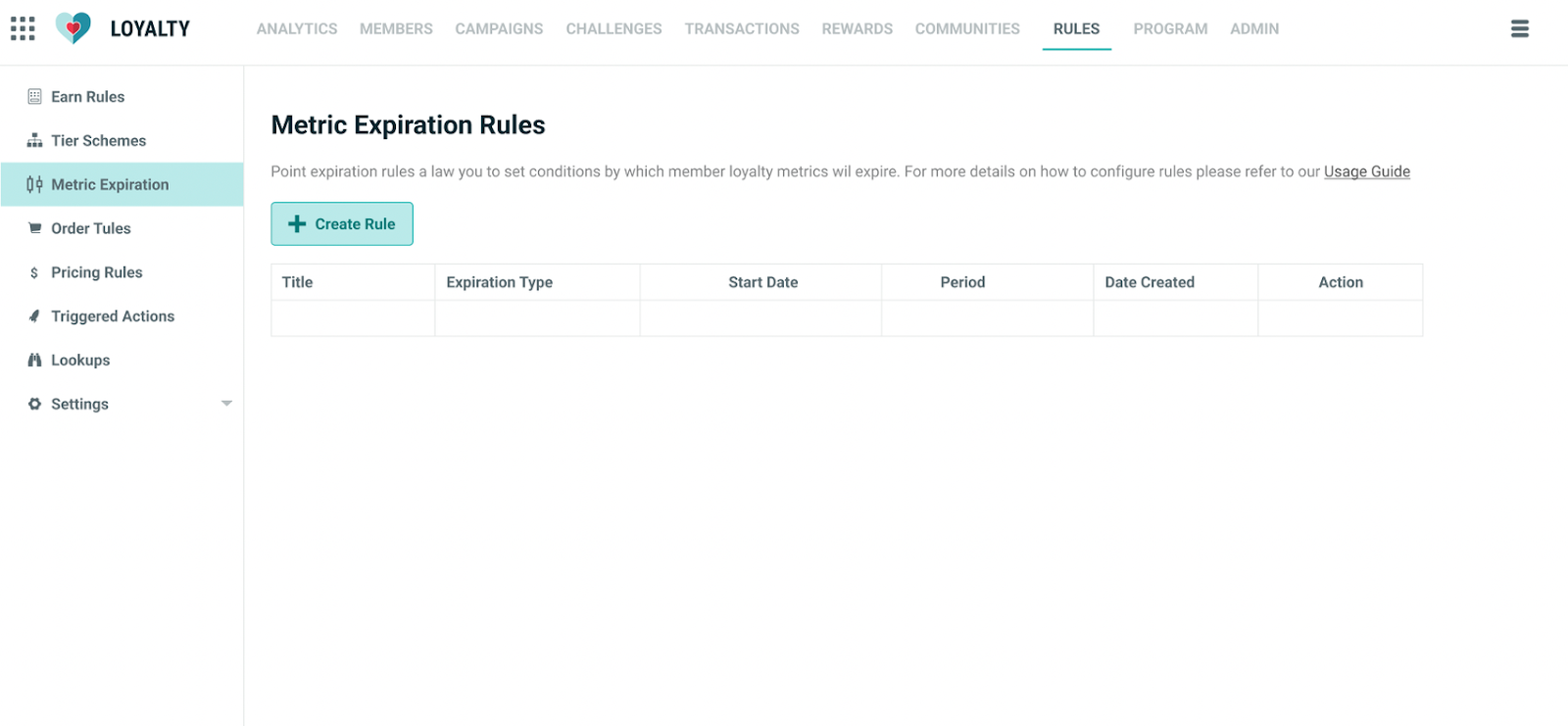
Loyalty has a new self service ability to empower marketers to configure Last Activity type expiration. This exists under the Rules tab in the Admin console.
To create a new expiration rule:
- Click Create Rule. This takes you to the Detail page for configuring the Last Activity Expiration.Note: This rule will currently apply to all metrics, which are marked as expire-able. Currently Loyalty does not support different rules across different metrics.
2. Enter the Title, Description, Start Date, Expiration Period, and a whitelist/blacklist of activities enabling the member to remain active.
3. The expiration is defaulted to Last Activity for now. Click Save and the rule will be created. Ensure you have enabled the rule for it to take effect.
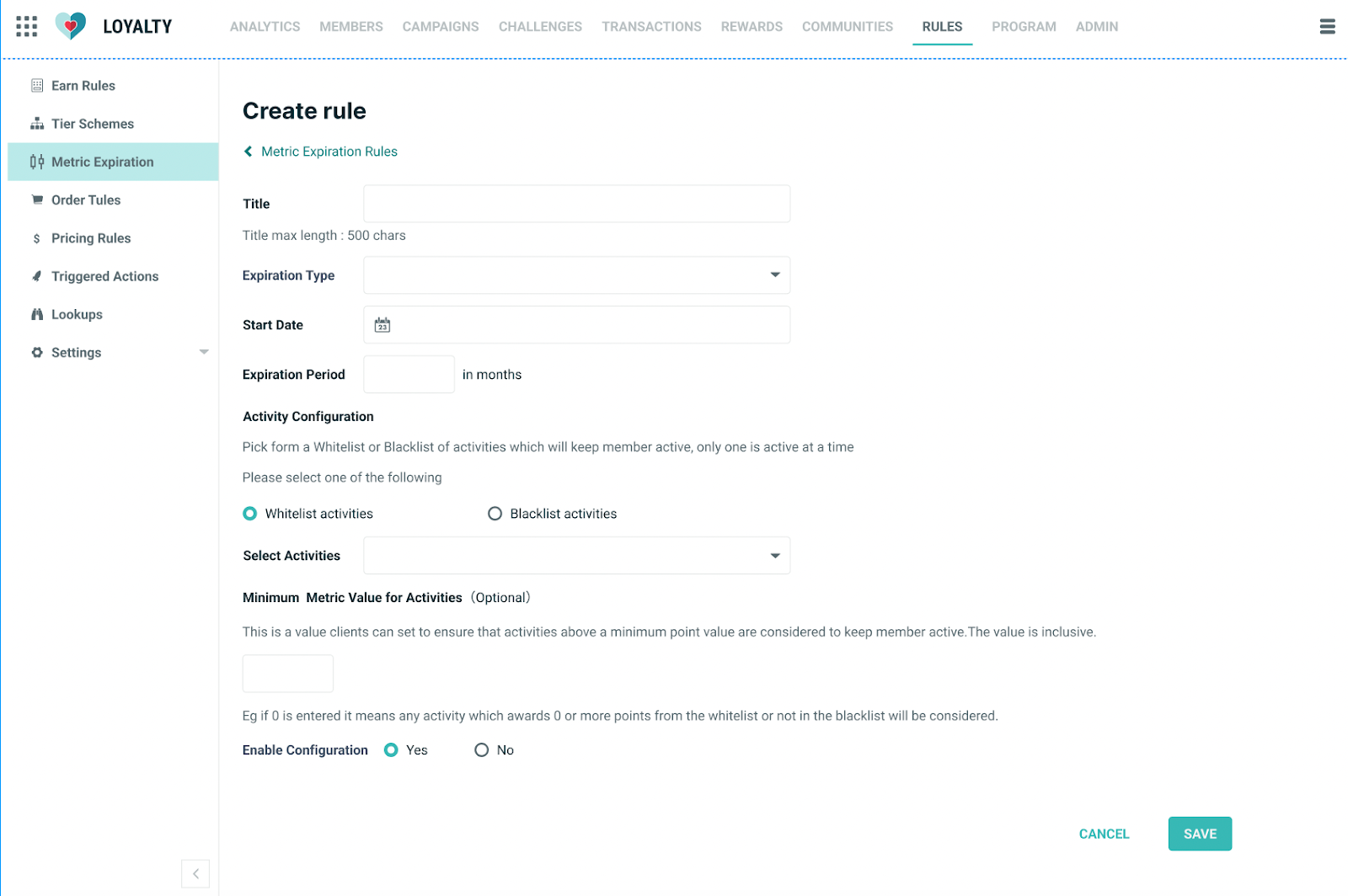
| Field | Description |
|---|---|
| Title | Title of the expiration policy. |
| Expiration Type | Type of expiration that is selected. Currently only Last Activity is available in Loyalty. For other types of expiration please use the old version of Loyalty in Earn rules or Program Settings. Other types of expiration will be migrated eventually. |
| Start Date | This should be set as the date from when the marketer wants the expiration calculation to start, this is not the program start date. |
| Expiration Period | The period of expiration in months. Months is the only supported options, please work with your marketers to express days/years in months. |
| Activity Configuration | Whitelist/Blacklist of activities which can be configured to enable members to extend their points expiration. At a given time either the whitelist or the blacklist configuration can be configured, not both. |
| Minimum metric value for activities | This is a value which a marketer can configure to set a minimum metric on activities which are whitelisted or blacklisted. |
| Enable Configuration | Allows you to enable or disable the configuration. |
| Custom Expiration Period | Define one or more "override" conditions. A Member who meets one of these conditions will use the expiration period defined for that condition, instead of the default Expiration Period (defined above). Members who don't meet any override conditions will use the default Expiration Period. If you define multiple conditions, the platform evaluates the conditions in the order they appear on the screen, from the top down. The platform will apply the first condition for which a Member qualifies. |
- Whitelist configuration: Only the selected activities in the whitelist keep members' points(metrics) from expiring. For instance, if Purchase is the only activity specified in the whitelist and a loyalty member performs other activities other than Purchase, then they will obtain points for those activities. However, those activities do not keep the points from expiring once the expiration period (in months) ARE reached, without the member performing the Purchase activity. As soon as a member is awarded a Purchase activity before their points expire, the member’s expiration for all their points get extended.
- Blacklist configuration: This works opposite of the whitelist configuration. You can add activities in this configuration that prevent the user from being considered active for the purpose of expiration. For instance, if you add the Purchase activity in the blacklist, any activity will extend the member’s expiration, but not the Purchase activity.
- Minimum metric value for activities: This is a value a marketer can configure to set a minimum metric on activities, which are whitelisted or blacklisted. The minimum metric is the value a member has to earn on an activity to extend the expiration. For instance, if we have a Purchase activity that is whitelisted and a minimum value set to 10 points, members performing a Purchase activity that gives the member 8 points, does not extend the member’s expiration. However, if the member(s) makes a purchase awarding 11 points, then the expiration gets extended.
- It is important to understand the minimum point value set is applicable to all activities and cannot be customized per activity type.
- The typical use case for using this is to:
- Ensure that Zero point activity does not keep the member active and extend their expiration.
- Ensure returns does not keep members active. Returns for marketers in some instances send a purchase with a negative metric value.
Once a rule in configured, Loyalty does not allow editing certain fields
Editable fields are as follows:
- Title.
- Description.
- Whitelist/blacklist of activities.
- Minimum metric for activities.
- The enable disable configuration.
Non Editable fields are as follows:
- Expiration type.
- Start Date of expiration.
- Period of expiration.
Expiration rules are meant to be program configurations to be set only a few times, preferably once during life time of loyalty programs. In case you need to update the configuration please contact your Zeta Global representative.
Rules and Limitations
- There is currently no matching of purchase and returns. A purchase with a return will extend the expiration for member, unless Minimum Metric values for activities is set to be zero or greater.
- Only activities in the whitelist or excluded from black list will count against expiration. At a given time, only one of white list or blacklist can be configured.
Every Activity Expiration
To configure Every Activity expiration, navigate to:
- Rules → Settings → Earn Rule Settings → Earn Metric Expirations.
- Specify the following:
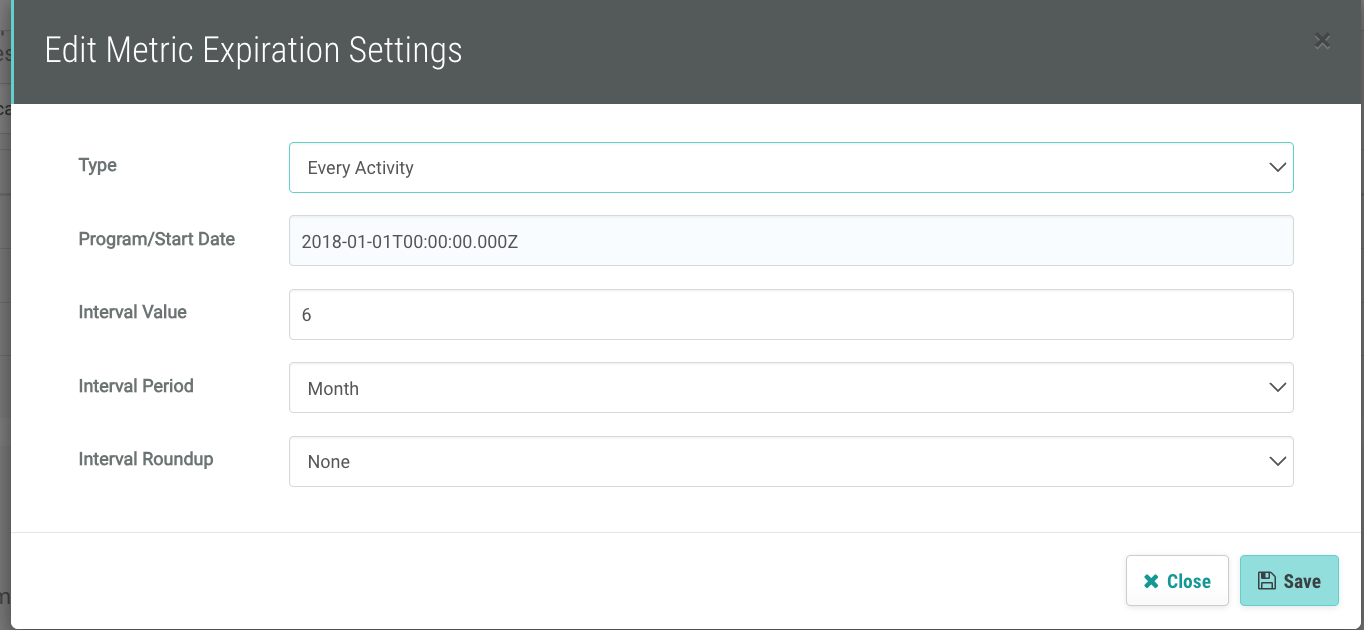
| Field | Description |
|---|---|
| Type | Every Activity |
| Program Start Date | The data which the marketer wishes the expiration to calculation to begin from. For new program it is usually when the program starts on the Loyalty platform. For migrated programs its up to the marketer to select an appropriate date |
| Interval Value | Value for the interval period |
| Interval Period | Day/Month/Year |
| Interval Roundup | End of the month/ End of the year |
3. Click Save.
Program Date
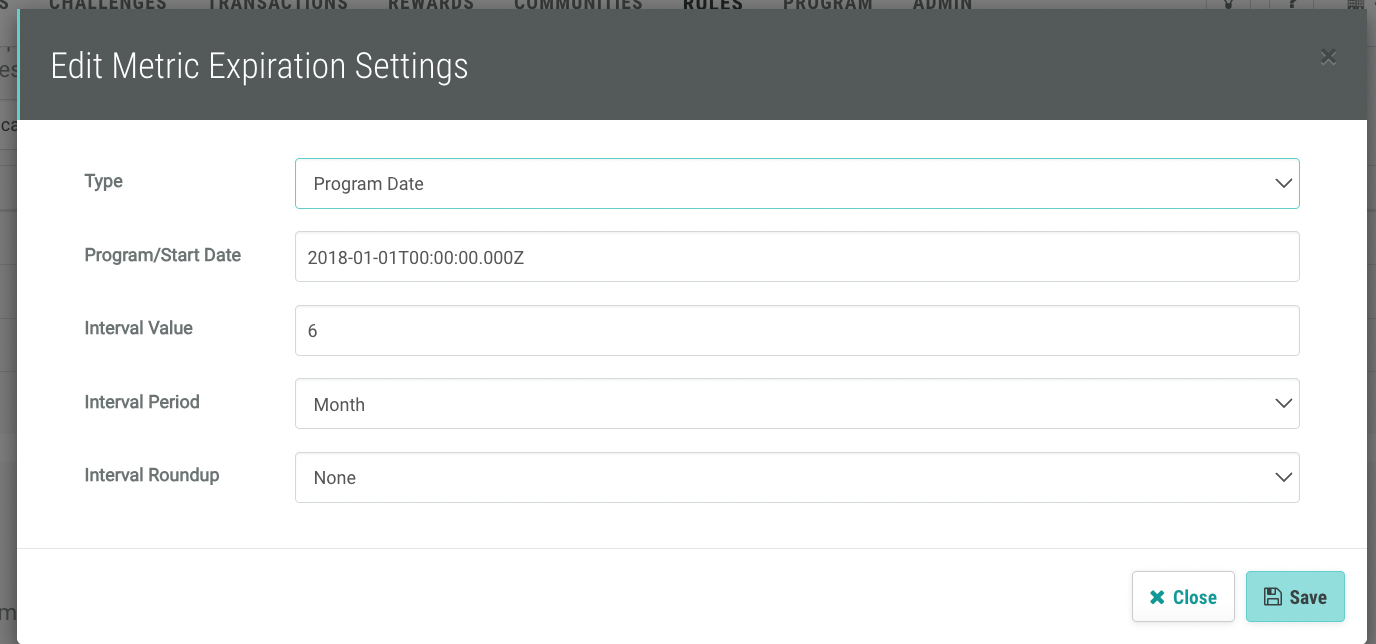
| Field | Description |
|---|---|
| Type | Every Activity |
| Program Start Date | The data which the marketer wishes the expiration to calculation to begin from. For new program it is usually when the program starts on the Loyalty platform. For migrated programs its up to the marketer to select an appropriate date |
| Interval Value | Value for the interval period |
| Interval Period | Day/Month/Year |
| Interval Roundup | End of the month/ End of the year |
Automatic Point Expiration job
The Automatic Point Expiration job should be configured via the Scheduled Job. The job can be scheduled to expire member points. If you are a new Loyalty user, you can configure the job directly without reaching out to support.
Important: If you are an existing Loyalty user, you would have the batch jobs configured by the support. Please contact Zeta Global support to stop any existing batch expiration job, before scheduling the job via the Scheduled Jobs screen.
There are two jobs related to point expiration:
- An initialization job which is only needed if the expiration policy is Last Activity expiration
- A Batchv2expiration job which is required to expire points.
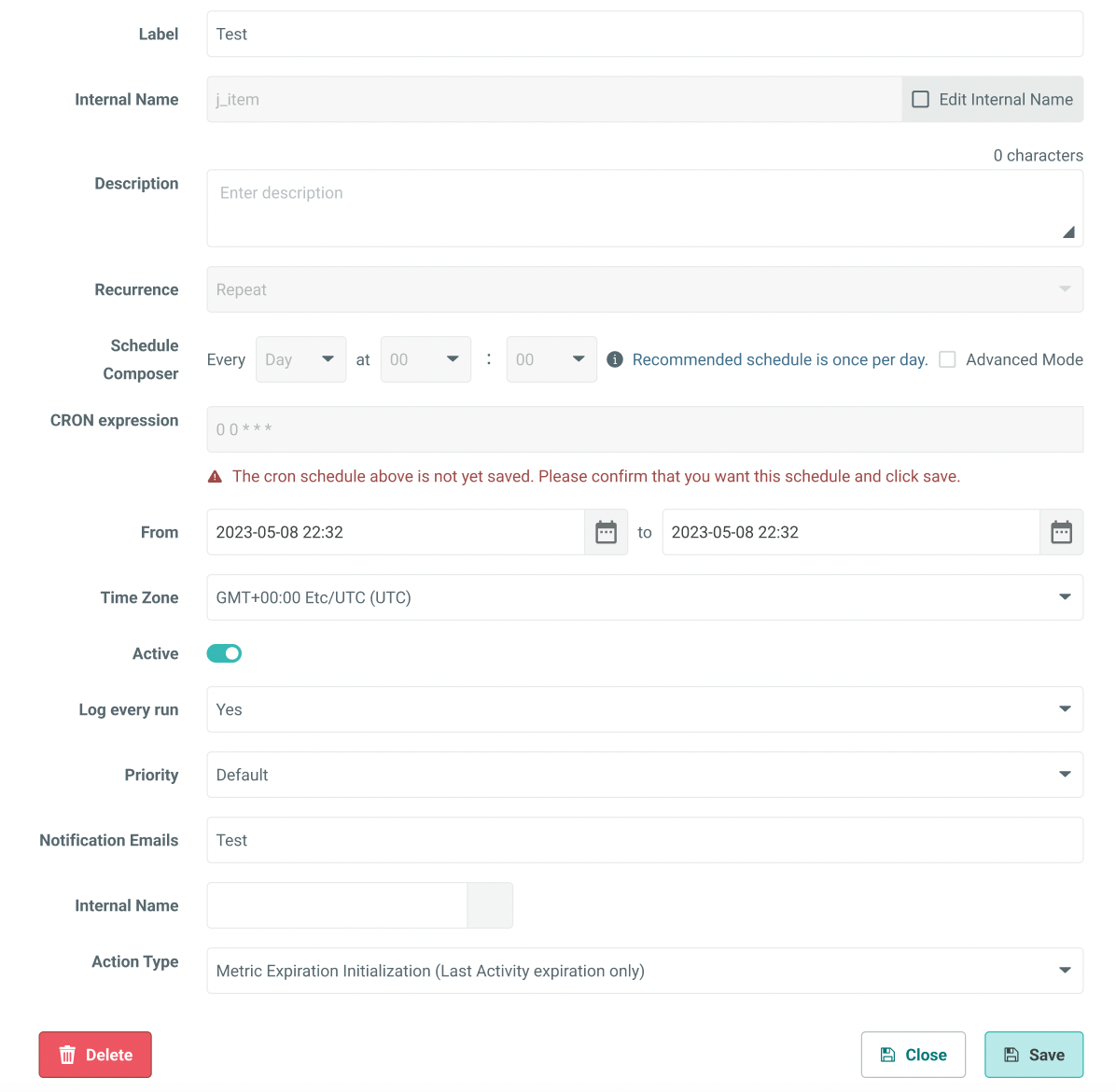
Note: For only Last ActivityExpiration, an initialization job is required before setting up the actual expiration. To set up the initialization job via scheduled jobs select the following in the images below. The initialization job does not require a scheduler since it is a one time job.
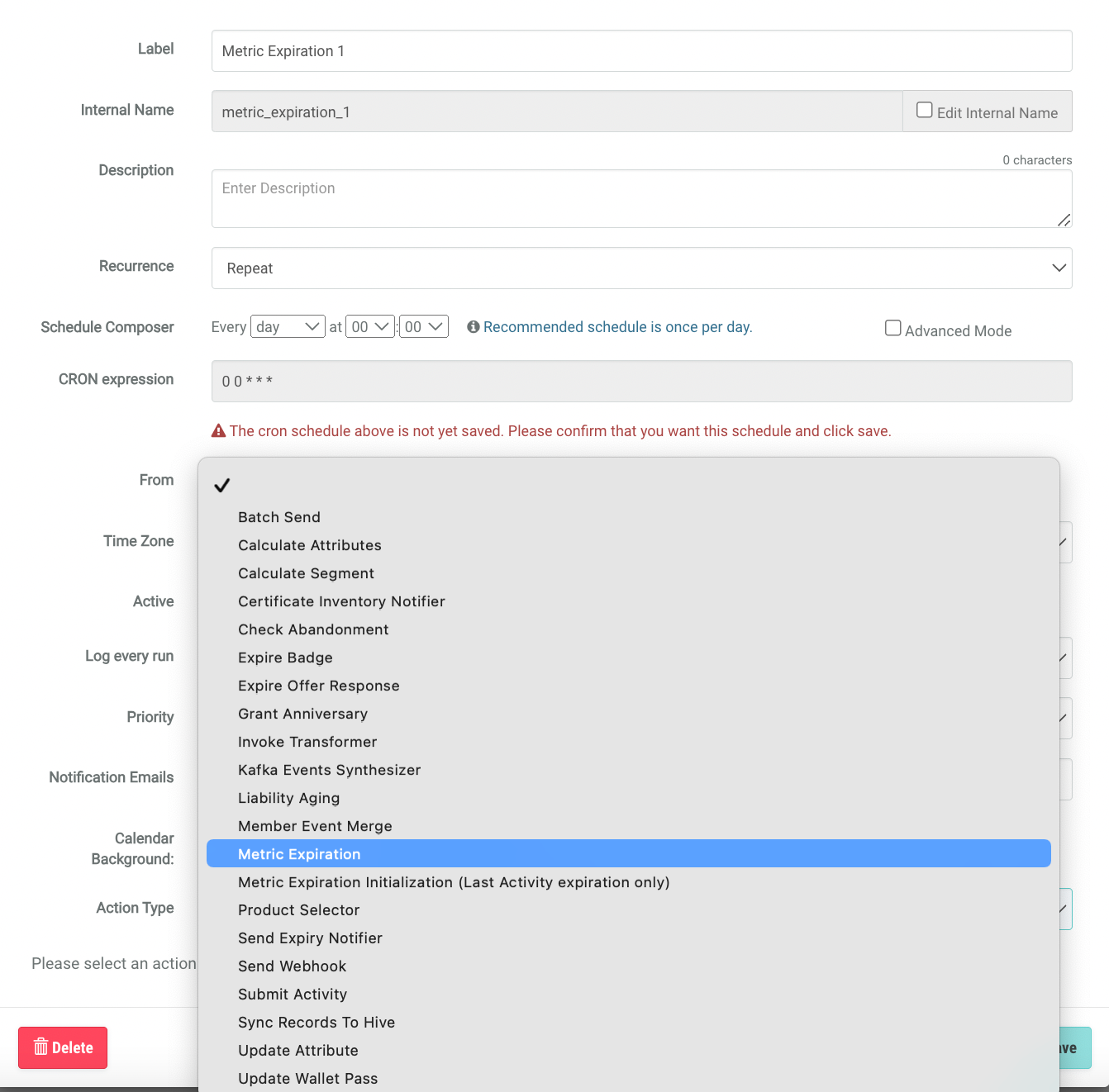
To set up expiration, pick the Metric Expiration and the job will automatically process the type of expiration configured on the marketer.
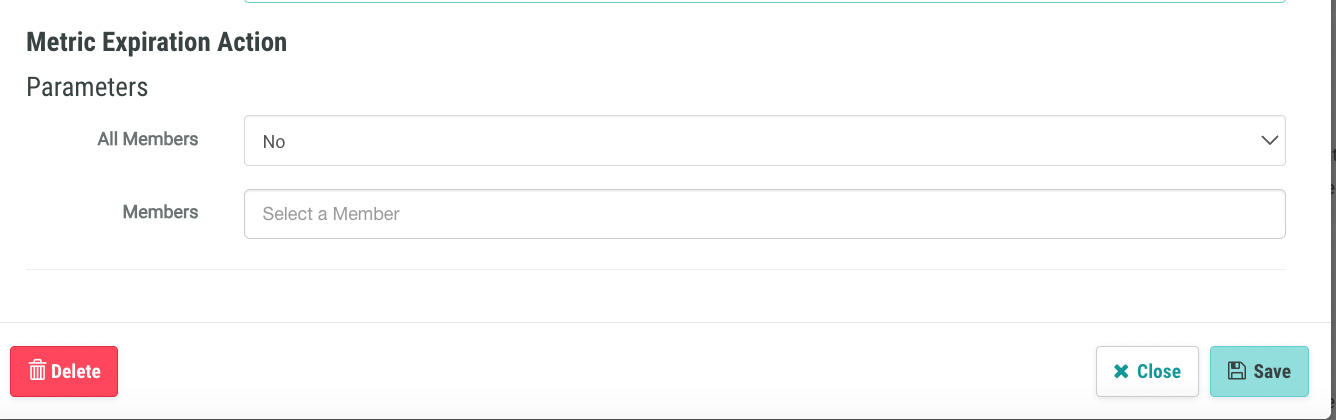
Loyalty provides an option to select specific members that need to be expired.
There are certain technical parameters that support can configure but are not in the product. Please communicate with support or your account manager if any of these parameters are needed to be changed.
Parameters not in Loyalty.
- Batch size
- FilePath
- MinimumPartitions
- AckImmediately
- ExecuteRules
- BatchSize
